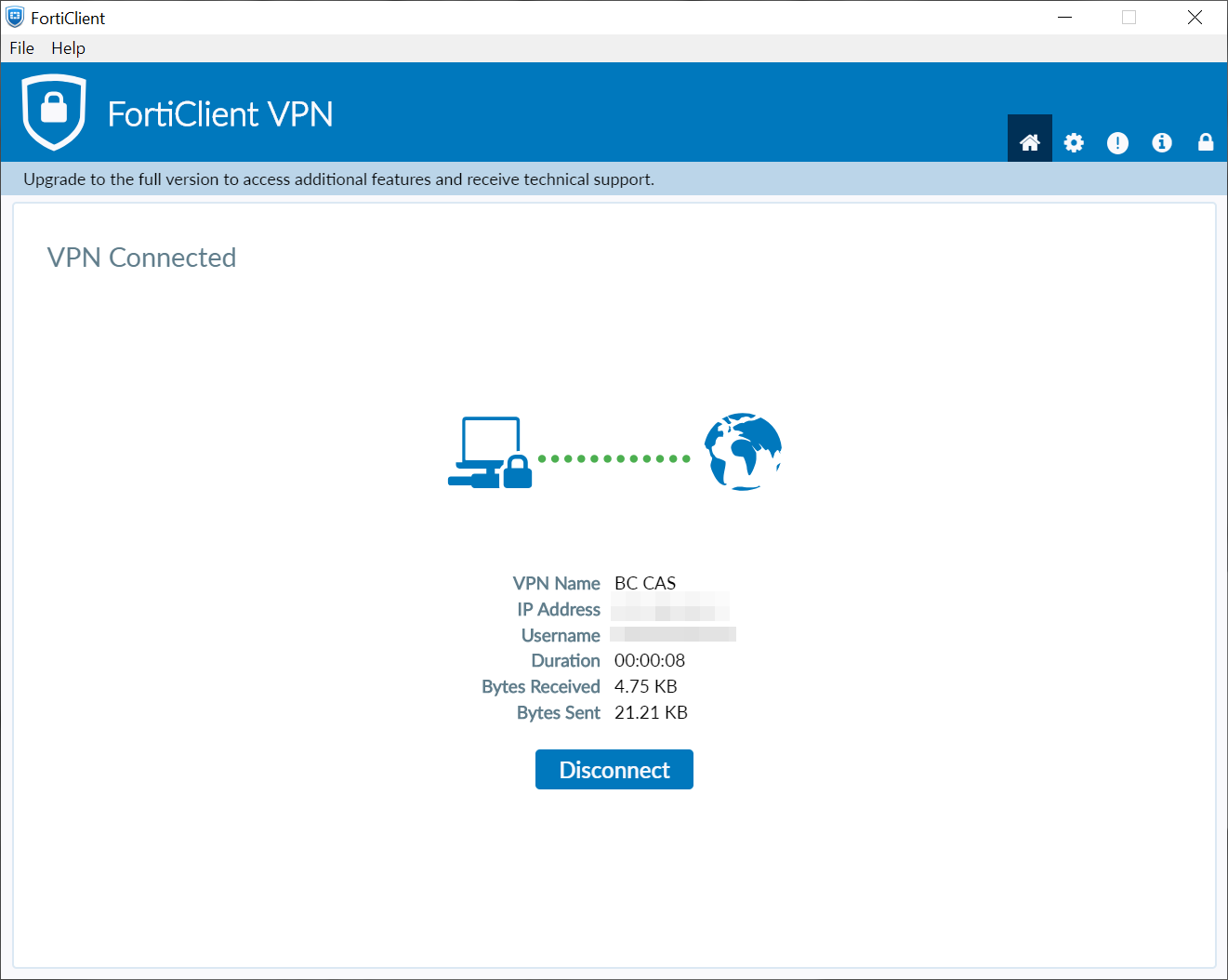
Windows
Step by Step, connecting to a VPN.
Step 1 - Install the Client
Install FortiClient VPN. If you do not have the client installed, download the latest installer for your Windows version from the official location.
Warning
Be careful what do you download. The download page contains other software - use have to download FortiClient VPN!
Follow the installation steps:
Installer Step 1:
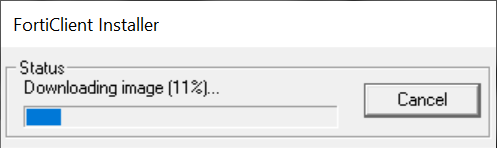
Installer Step 2:
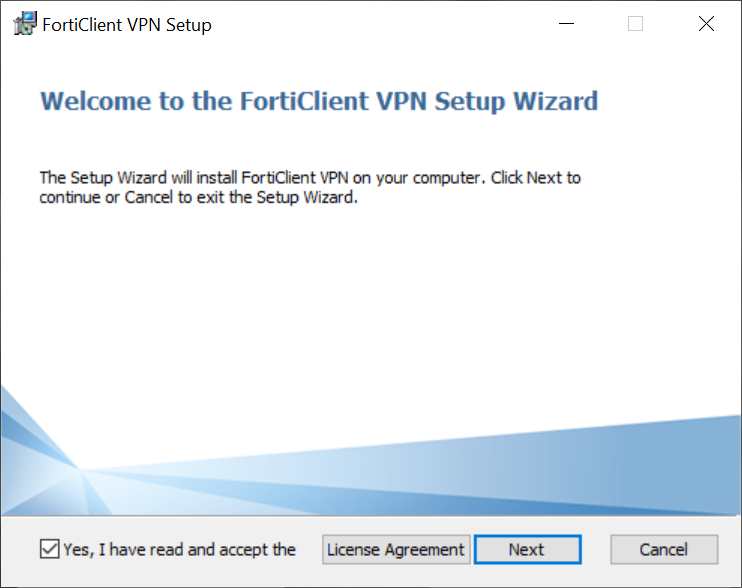
Installer Step 3:
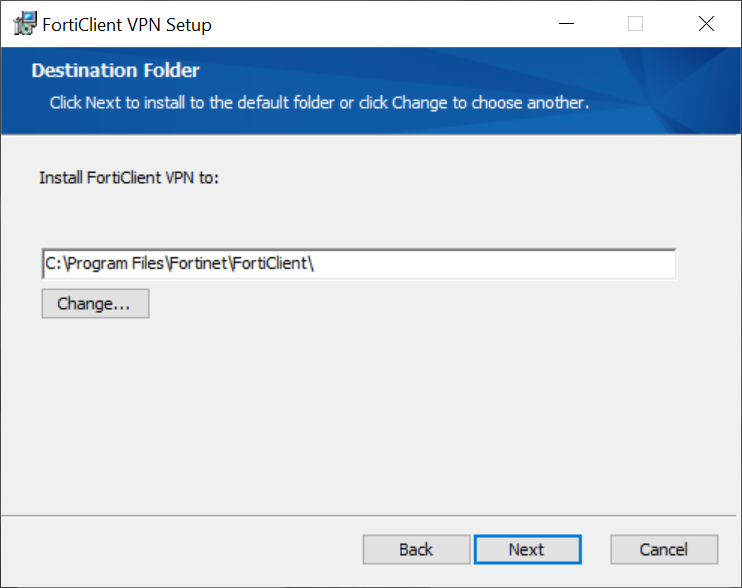
Installer Step 4:
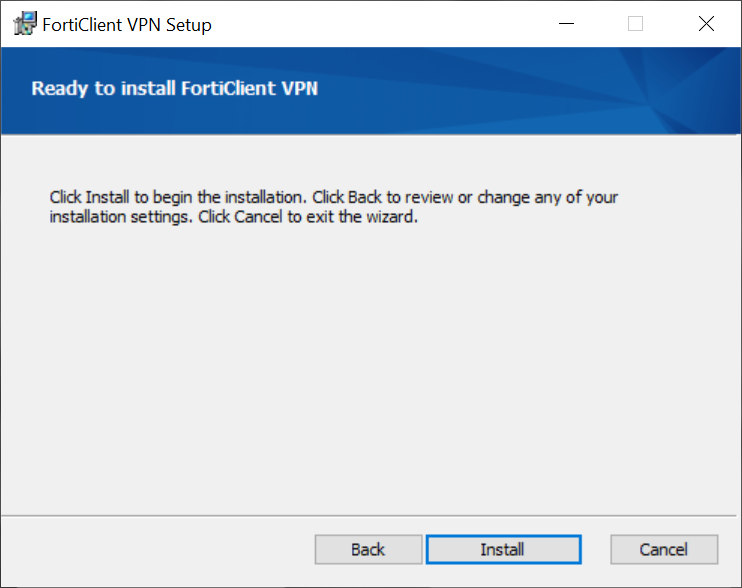
Installer Step 5:
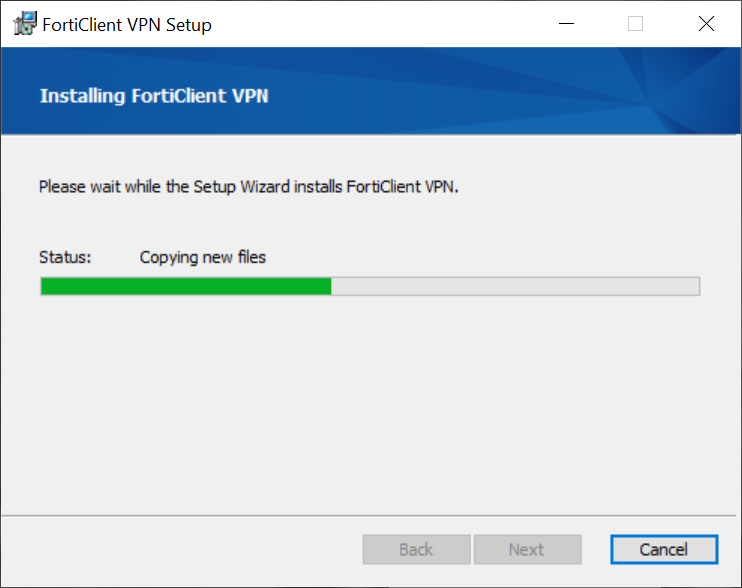
Installer Step 6:
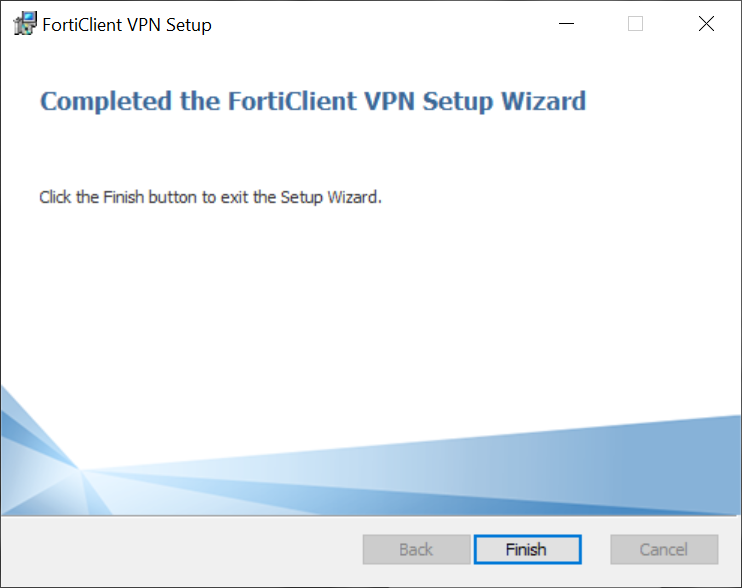
Step 2 - Configure the VPN profile
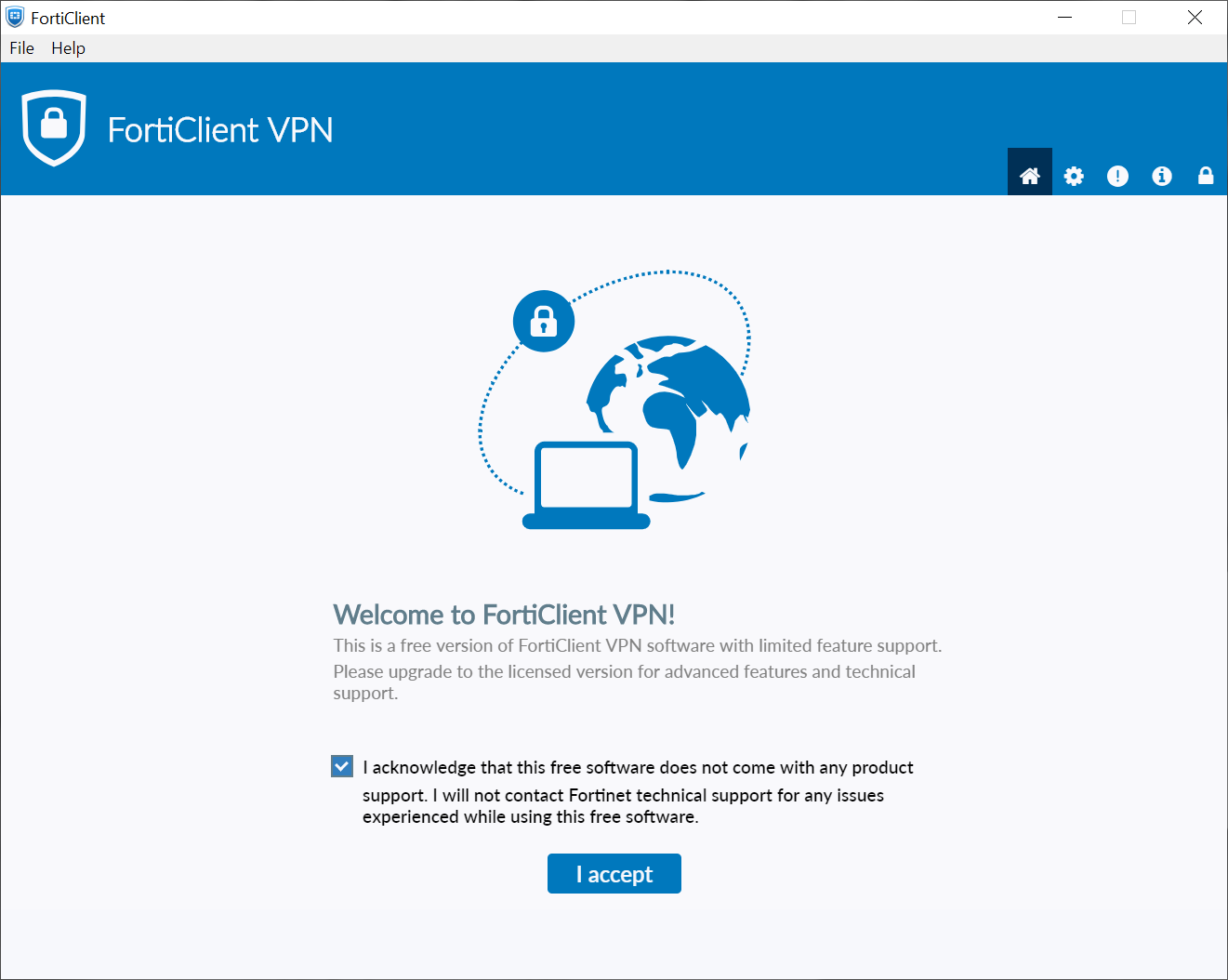
Launch the FortiClient VPN application by clicking it’s icon on your desktop.
You have to accept the license. Click “I accept”.
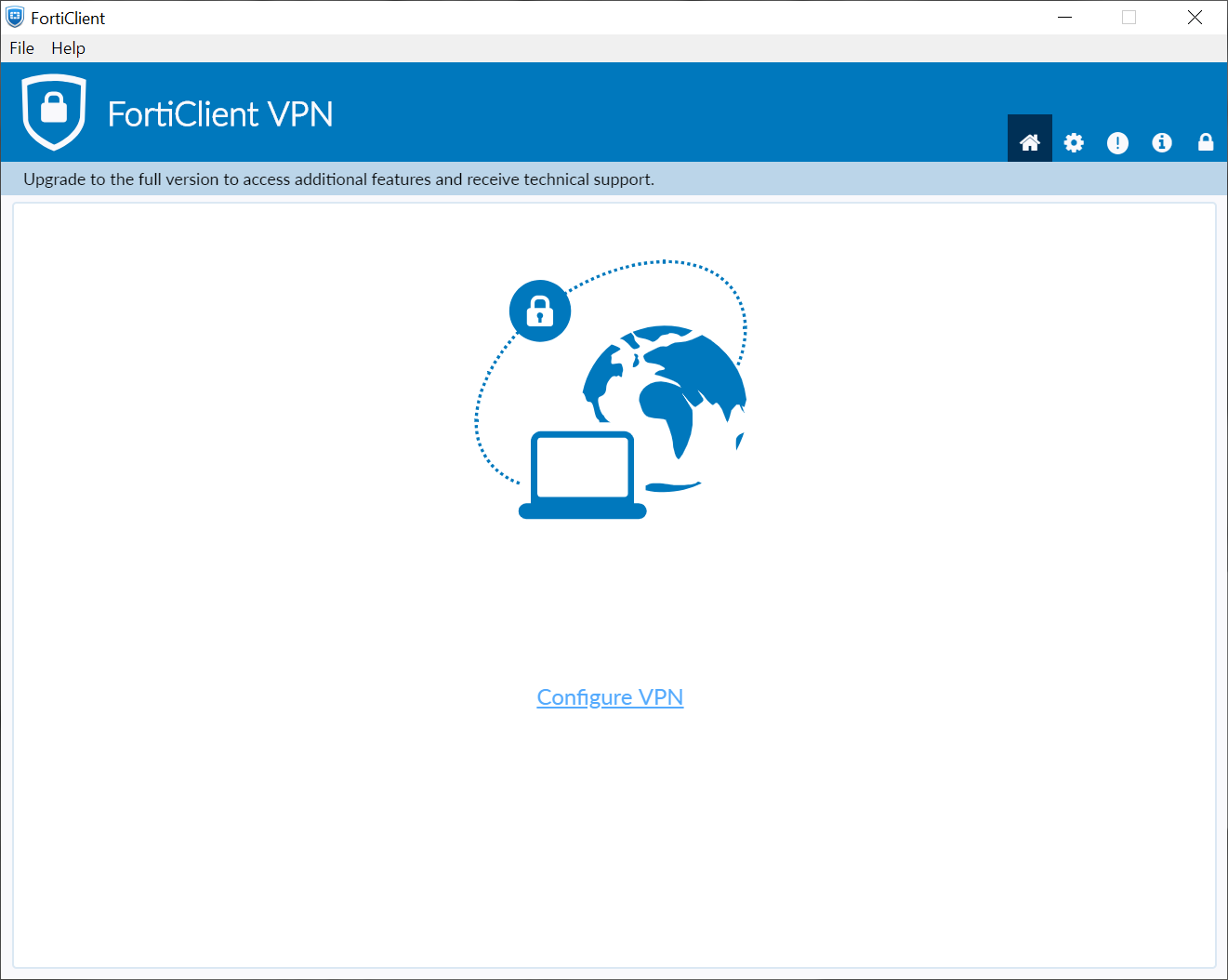
Click on Configure VPN.
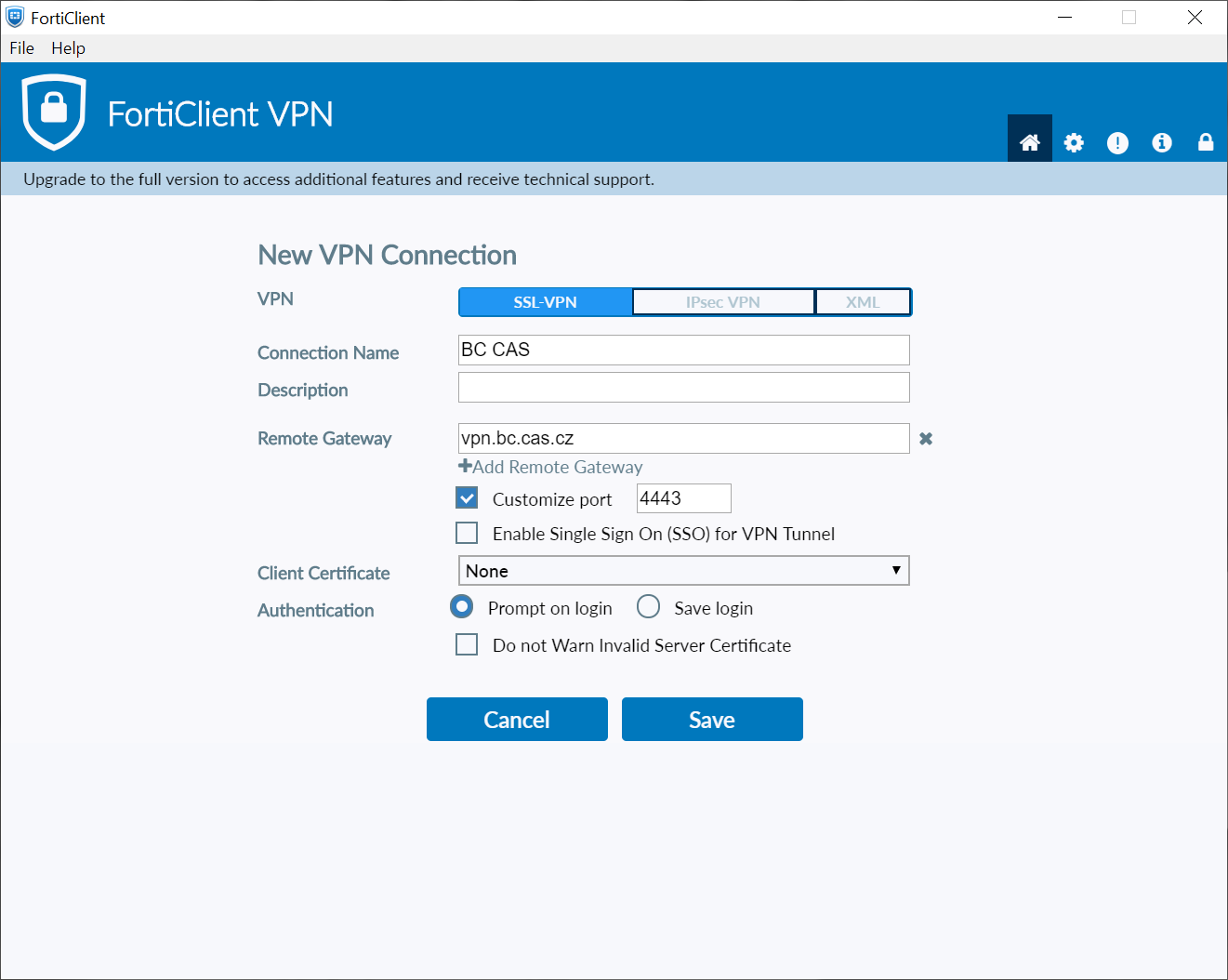
Fill the the following:
Connection name: BC CAS
Remote gateway: vpn.bc.cas.cz
Customize port: 4443
Confirm by clicking “Save”.
Step 3 - Connect to the VPN
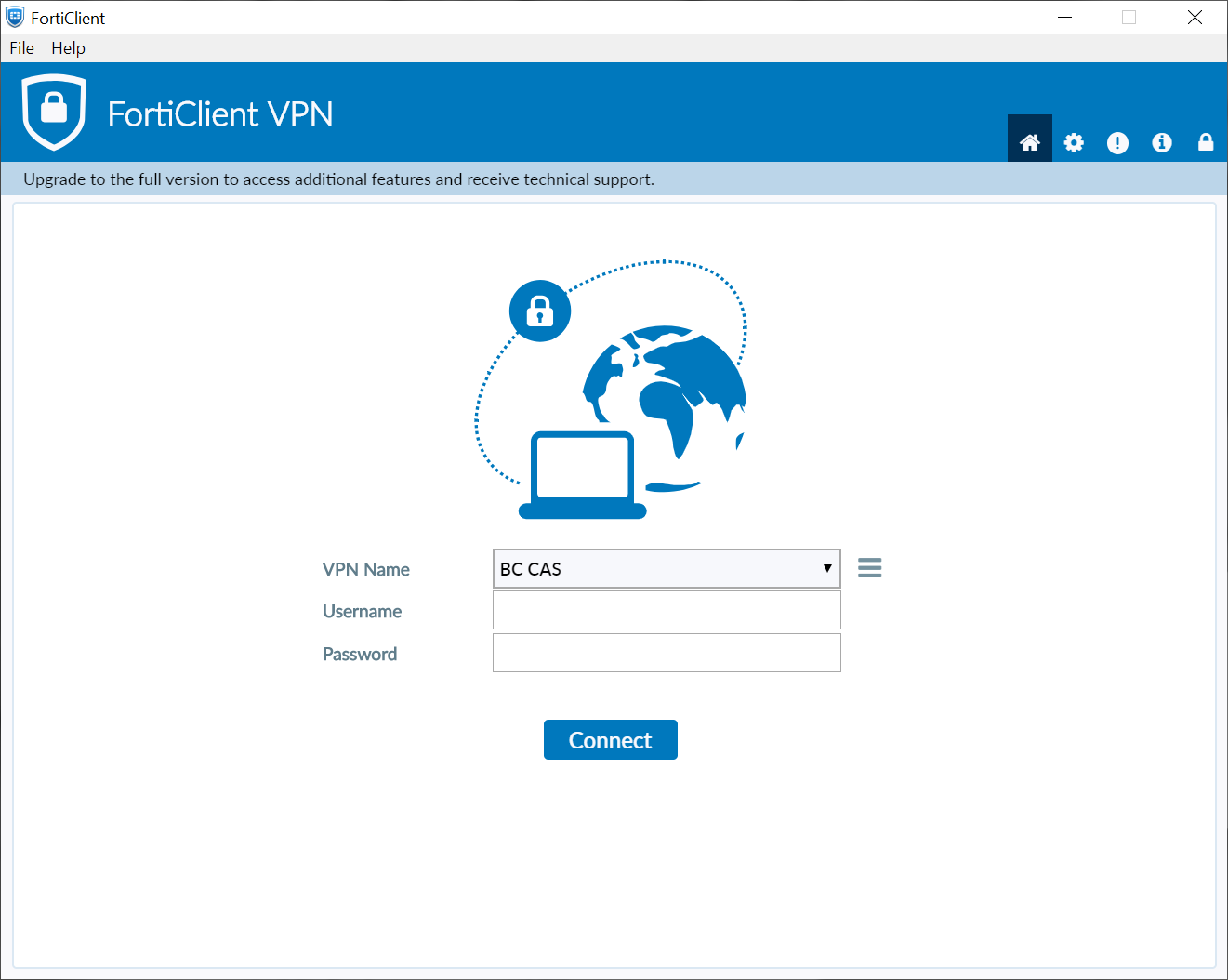
To connect the the VPN click on the connect item from the FortiClient VPN menu.
Hint
If you do not have your login credentials, please contact support.
Step 4 - Disconnect from the VPN
When you want to disconnect, do it simply by clicking on the Disconnect item from the client menu.